Getting Started
Welcome to Kan Do
What Kan Do is, what it isn't, and how this guide is organized.
Kan Do is a kanban-style project manager for Mac, iPhone, iPad, Apple Vision Pro, Apple TV, and Apple Watch. It's built around one idea: a few things, done really well. You organize work into Spaces and Projects, move tasks across the columns you define, and open any task to find a full rich-text notes editor underneath.
There is no account to create, no server of ours holding your data, and no subscription. Kan Do is a one-time purchase on the App Store, and your data lives on your devices and, if you turn it on, in your own iCloud.
The shape of things
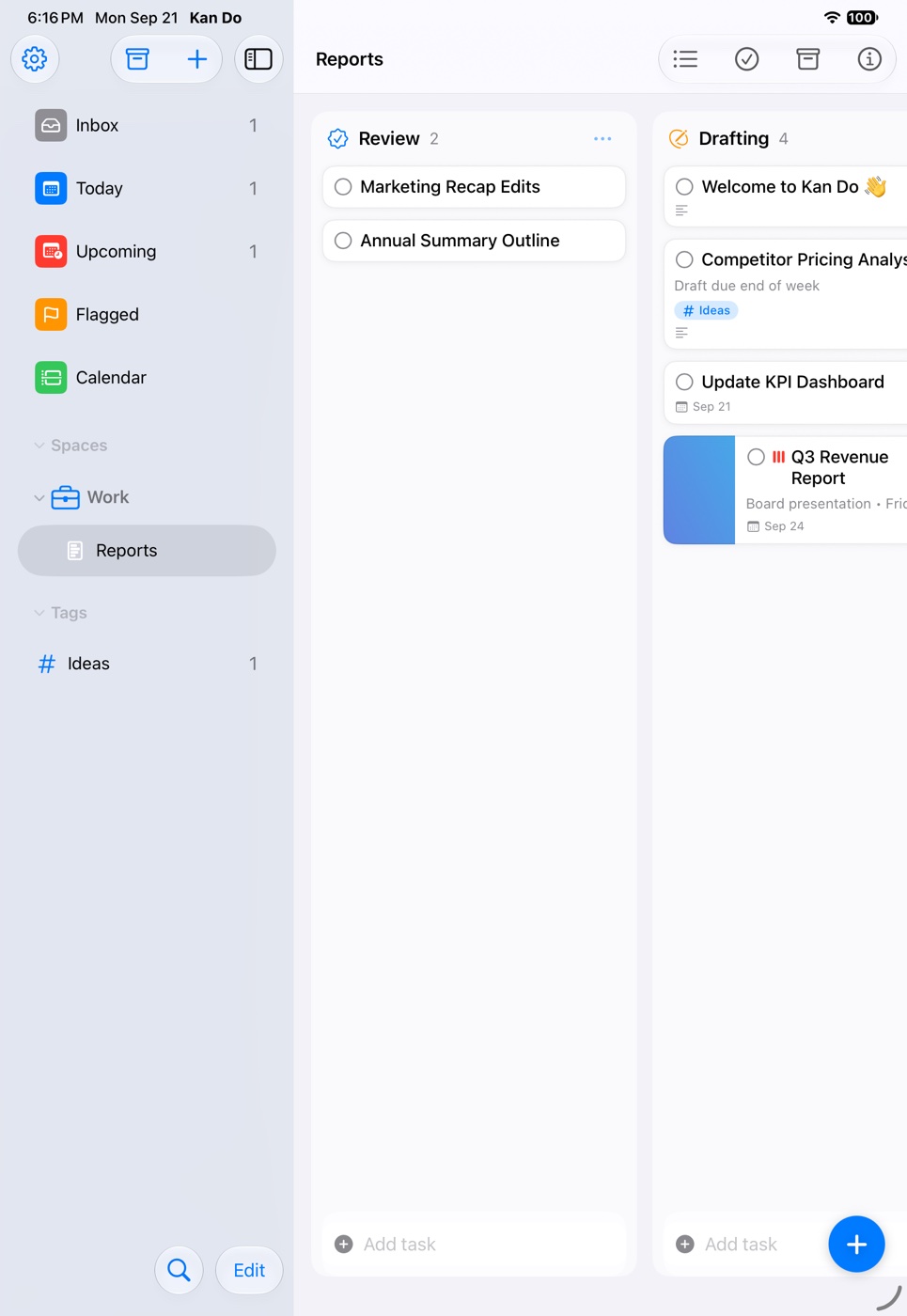
Kan Do has a small, fixed hierarchy. Once you know it, the whole app makes sense.
| Level | What it is | Example |
|---|---|---|
| Space | A group of projects | Work, Personal, Podcast |
| Project | One board (or list) of tasks | Website Redesign, Groceries |
| Column | A stage or bucket inside a project | To Do, Doing, Done |
| Task | A card with a title, notes, dates, tags, and more | "Send the Q3 report" |
| Subtask | A checklist item inside a task | "Attach the spreadsheet" |
Cutting across all of that are tags, which can be nested, and smart lists, which gather tasks from every project based on rules. The built-in smart lists are Inbox, Today, Upcoming, Flagged, and Calendar. You can make your own too.
What the app does well
- Boards that are fast. Drag cards between columns, reorder with a click or a tap, and add tasks from the always-ready field at the bottom of every column.
- Cards that show context. A cover image, subtitle, priority, flag, tags, start date, due date, and subtask progress are all visible without opening the card.
- A real notes editor. Titles, headings, lists, to-do checkboxes, quotes, code blocks, text colors, highlights, links, images, drawings, and file attachments live inside every task.
- Reminders that don't give up. Alert Until Done keeps nudging you every 30 minutes, hour, 3 hours, or day until a task is finished.
- Private iCloud sync. Every device stays in step through your own iCloud account. Nothing passes through anyone else's servers.
- Deep system integration. Siri, Shortcuts, Spotlight, widgets, the share sheet, and a connector for AI assistants like Claude and ChatGPT.
What it deliberately doesn't do
Kan Do is a personal tool. It has no team sharing, no comments, no assignees, and no web app. If you need to collaborate with other people on the same board, Kan Do isn't the right fit, and this guide won't pretend otherwise.
How to use this guide
The guide is organized the way the app is:
- Getting Started walks you through the layout and your first board.
- Organizing covers spaces, projects, boards, columns, tags, and the archive.
- Tasks covers everything a card can hold, from dates and reminders to the notes editor.
- Smart Lists & Calendar explains the built-in lists and how to build your own.
- Settings documents every option, including typography and themes.
- Sync & Your Data covers iCloud, backups, recovery, import, and export.
- Automation & Integrations covers Siri, Shortcuts, widgets, the share sheet, and AI assistants.
- Platforms notes what's different on Mac, iPhone, iPad, Vision Pro, Apple TV, and Apple Watch.
- Help has the FAQ, troubleshooting, and what changed in each version.
Use the search box in the sidebar to jump straight to a feature or setting. Press / on any page to focus it.
The very first time you open Kan Do it comes with a sample Work space and a "Welcome to Kan Do" card. That card's note is a short introduction from the developer, and the Inbox holds a card called "Try dragging a card between columns." Do exactly that. It's the whole app in one gesture.