Platforms
Apple TV
What the read-only Apple TV app shows, how to navigate it, and how it stays in step with your other devices.
Kan Do for Apple TV is a read-only view of your boards on the big screen. It's for reviewing a project with someone in the room, keeping a board up on a wall, or checking what's next without picking up a device. It doesn't add or edit tasks, on purpose: the Siri Remote isn't a great keyboard, and every change you'd make belongs on a device with one.
Getting set up
- Install Kan Do on the Apple TV from the App Store. It's included in your purchase.
- Make sure the Apple TV is signed in to the same iCloud account as your other devices.
- Open the app. The first launch shows "Waiting for iCloud…" while your spaces and projects download. The message explains that they'll appear once the download finishes.
There's no setting to turn on. The TV app reads whatever iCloud holds.
The home screen
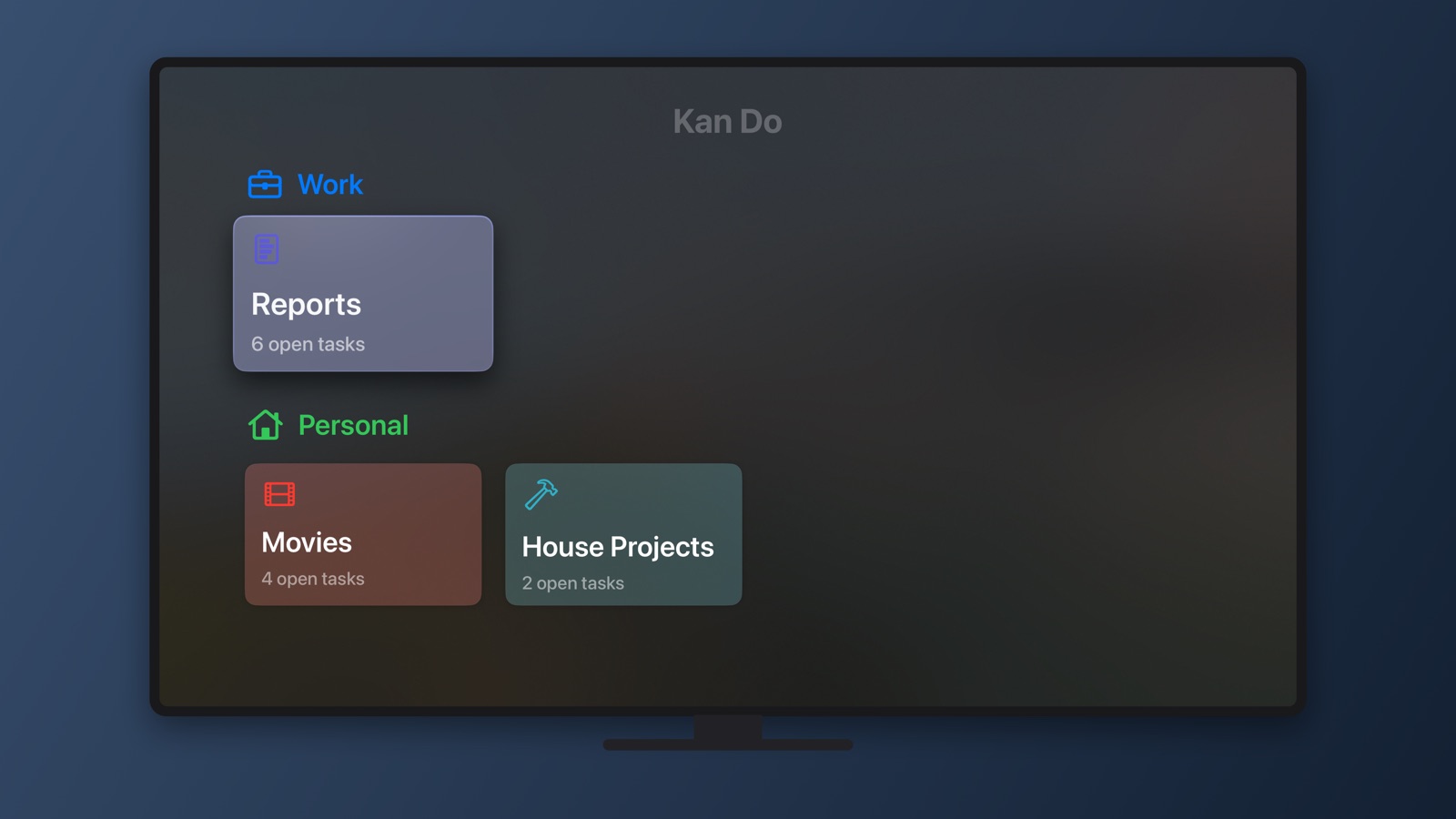
Projects are laid out as shelves, one per space, with the space's name as the shelf title. Projects that don't belong to a space appear in a trailing Projects shelf. Each project tile shows its icon and color.
Boards
Click a project to open its board. Columns scroll sideways, and cards show the same things they do on a phone: cover image, priority, flag, title, subtitle, tags, dates, and the note and attachment indicators. Per-project cover styles (Left Strip, Square, Widescreen) are honored.
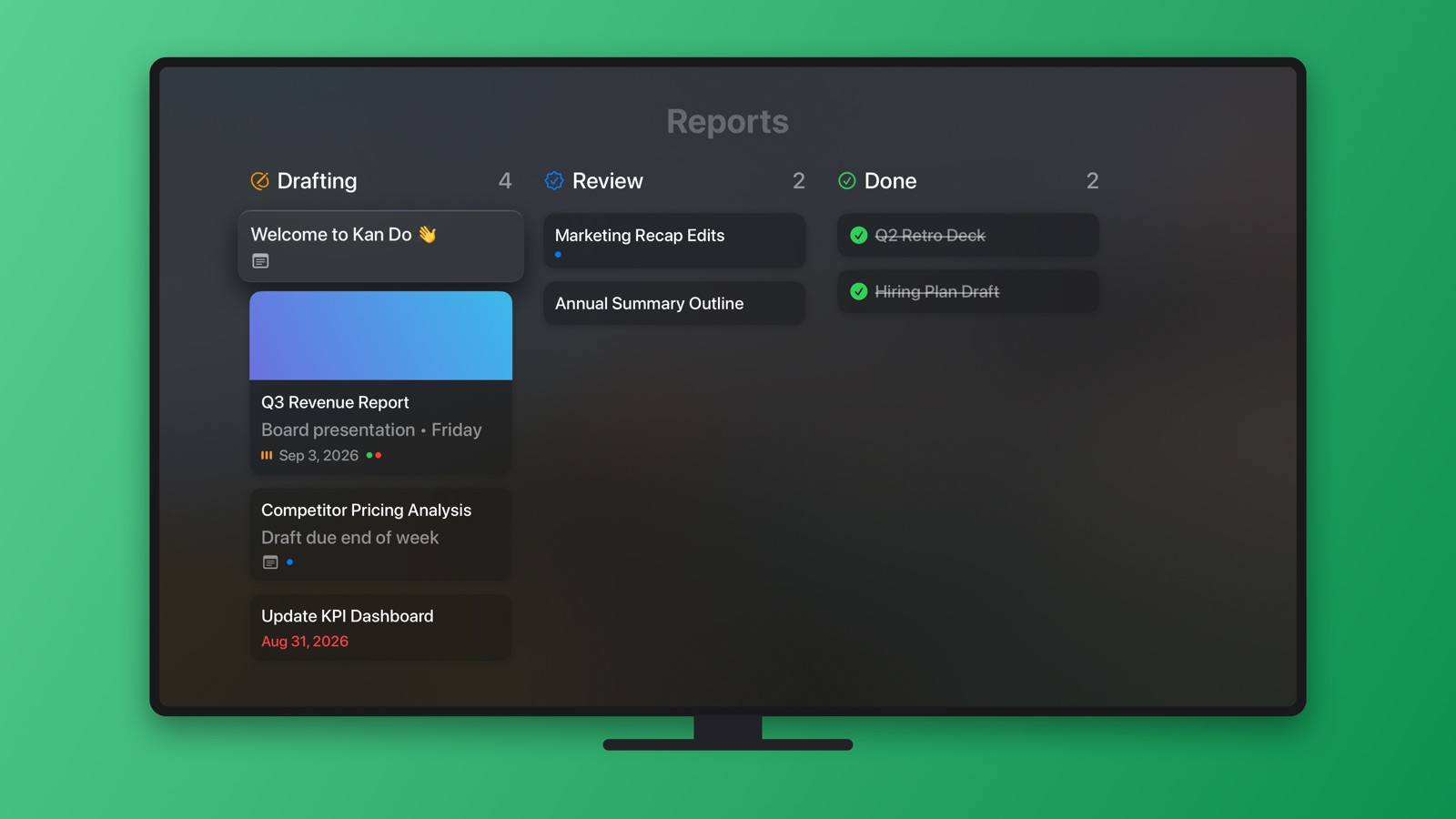
The board stays live: move a card on your iPhone and it moves on the TV as the change syncs.
An empty project reads "This project doesn't have any columns yet."
Task closeup
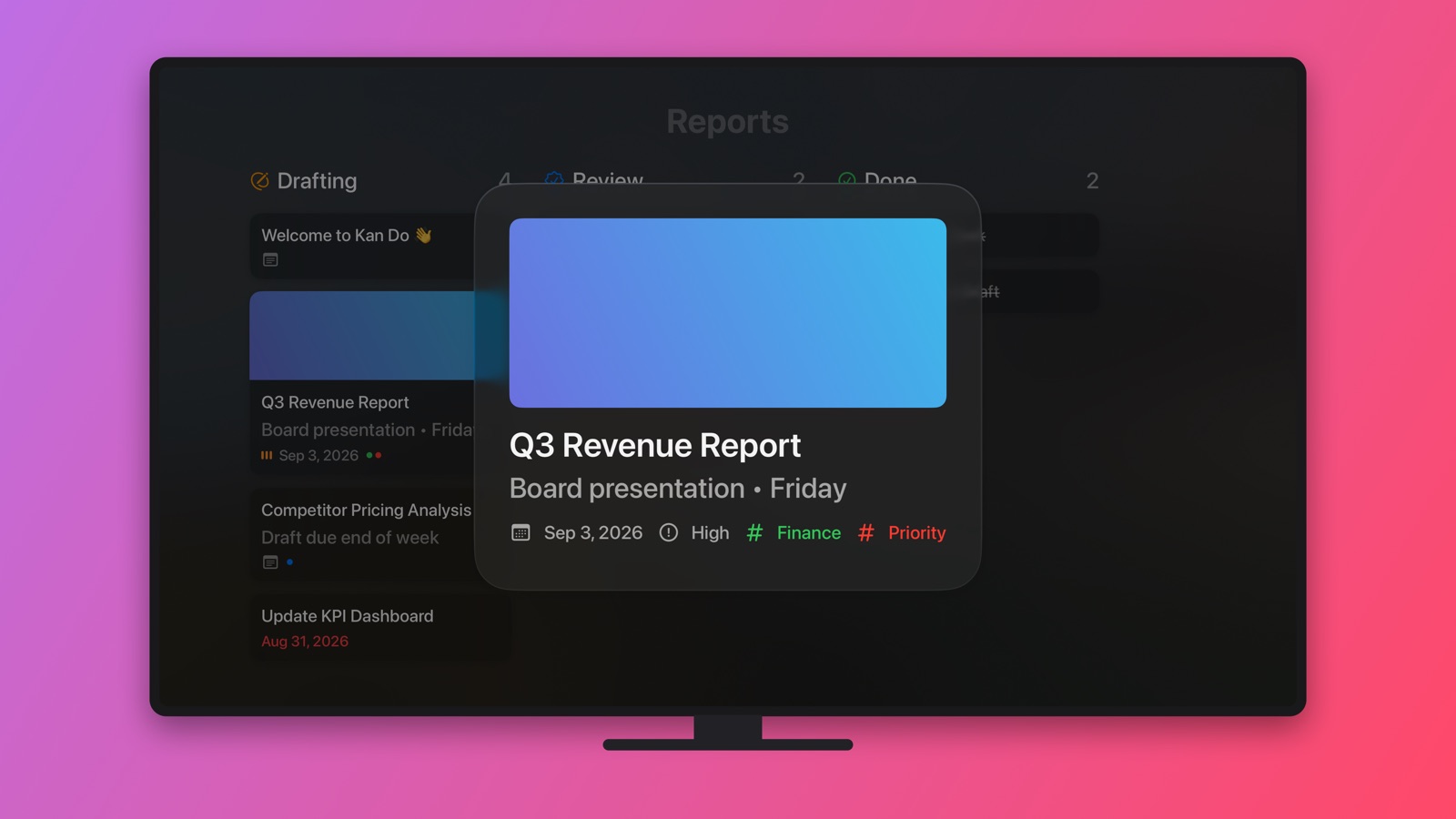
Click a card to open a closeup showing the due date, priority, tags, Note, Links, whether it's Flagged, and how many attachments it has.
Navigating with the remote
- Swipe on the touch surface to move between tiles, columns, and cards.
- Click to open a project or a card.
- Press Menu or Back to go up a level.
What it doesn't do
- No adding, editing, completing, or moving tasks
- No smart lists, tags view, or calendar
- No settings
If it shows "Storage Unavailable"
The Apple TV couldn't open its local copy of the data. Quit the app (double-press the TV button and swipe it up) and reopen it. If iCloud isn't signed in on the Apple TV, sign in and relaunch.
A project used as a family or team board, with Widescreen cover images, looks great on the TV. Give each column a distinct color so it reads from across the room.