Organizing
Archive and Task Completion
What happens when you complete a task, how the archive works for tasks, columns, and projects, and how to restore things.
Kan Do never deletes anything just because you finished it. Completed tasks either stay on the board with a strikethrough or move to the archive, and you choose which.
Completing a task
Tap the circle on a card or row. It fills with your accent color, a small sparkle burst plays, and the title draws a strikethrough. What happens next depends on the Task Completion setting:
- Keep on Board: the task stays exactly where it is, crossed out. You can still drag it, open it, and uncheck it.
- Move to Archive: after the strikethrough draws, the card fades out and the cards below slide up. The task is now in the project's archive.
Widget check-offs, Siri, and Shortcuts honor the same setting.
Setting it app-wide
Settings ▸ Appearance ▸ Task Completion sets the default for every project. Switching to Move to Archive immediately archives tasks that are already completed, except in projects that have their own Keep on Board setting.
Setting it per project
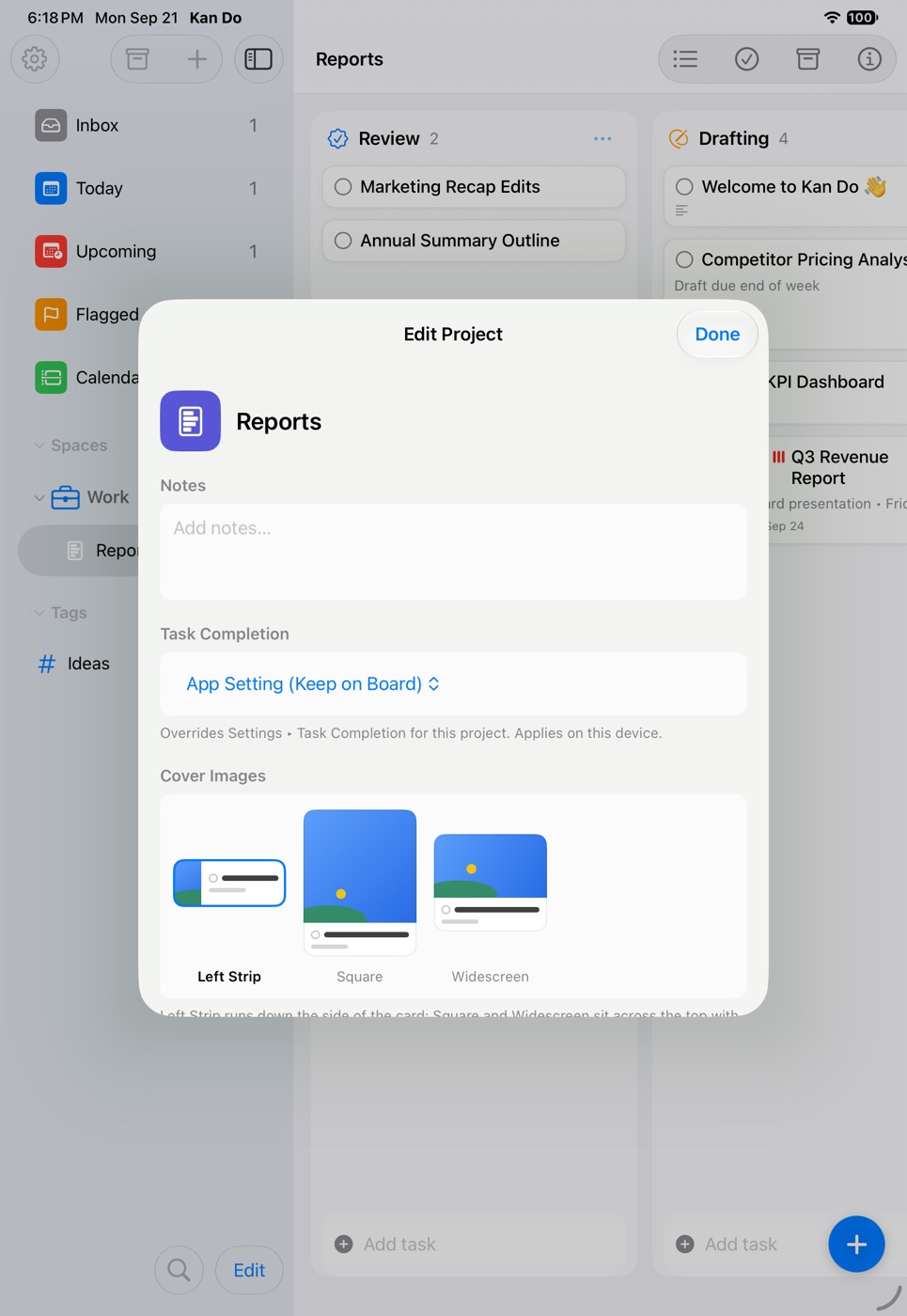
Project Settings has its own Task Completion choice: App Setting, Keep on Board, or Move to Archive. A project's own choice overrides the app-wide setting, so a kanban board can keep its finished cards in a Done column while your errand lists sweep themselves clean. Switching a project to Move to Archive archives its already-completed tasks. Like Sort By, this is a device preference.
Archiving by hand
You don't have to complete a task to archive it:
- Right-click or press and hold a card and choose Archive.
- A column's … menu has Archive All Tasks (keeps the column) and Archive Column (archives the column and its tasks together).
- A project's context menu in the sidebar has Archive for the whole project.
Finding archived things
There are two archive views:
The project's archive
The box icon in a project's toolbar shows what's archived in that project, in two sections:
- Tasks, each with Restore Task and Delete Task.
- Boards, listing archived columns as "Column name (count)", each with Restore Column and Delete Column.
Restoring a column brings back the column and its tasks together.
The sidebar archive
The box icon at the top of the sidebar shows archived projects and archived tasks across the whole app, each row with Restore and Delete. When nothing is archived it reads "Nothing Archived".
Restoring
Restoring a task always marks it incomplete again and puts it back in the column it came from. If that column was deleted, the task goes to the Inbox. Kan Do records the archive and restore dates in the task's History section.
Deleting for good
Delete in either archive view removes the item permanently. There's no trash beyond the archive, so treat that button as final. On iPhone and iPad, shake to undo works for a few seconds after deleting a task; on the Mac, ⌘Z.
Completed tasks in smart lists
Under Keep on Board, completed tasks still appear in Inbox and in a project's list, crossed out. Under Move to Archive they disappear from every list. Today, Upcoming, and Flagged only ever show incomplete tasks, and the Calendar shows dated tasks whether or not they're done.
Widgets and archived columns
A widget showing a project lists its open tasks only. Completion columns and archived columns are left out.
If you like seeing what you've finished this week, keep tasks on the board and add a "Done" column, then use Archive All Tasks on it every Friday. If you'd rather never see finished work again, set Move to Archive once and forget about it.