Smart Lists & Calendar
Custom Smart Lists
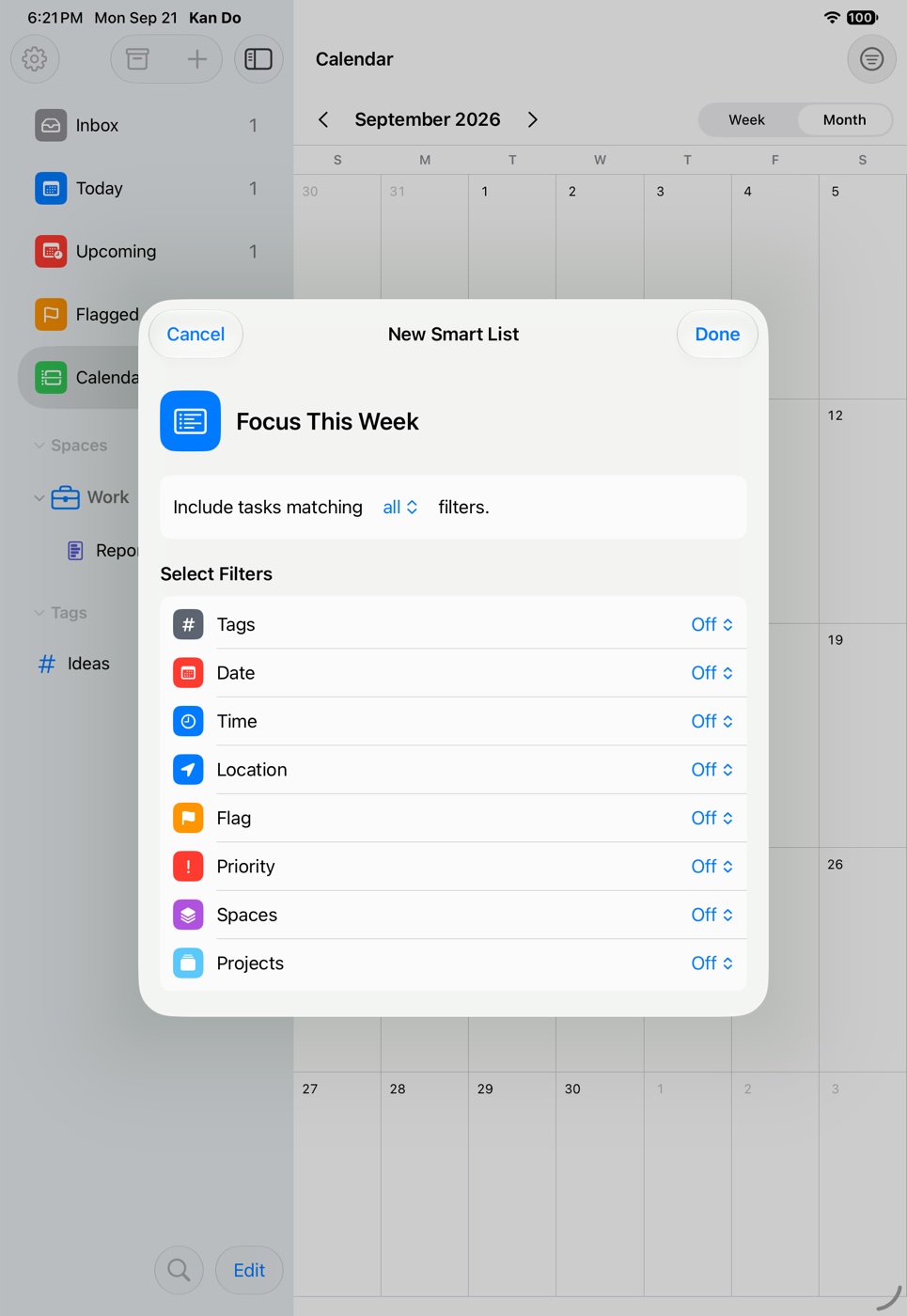
Build your own lists with filters for tags, dates, times, location, flag, priority, spaces, and projects, with Include and Exclude.
Beyond the built-in lists you can make your own, the way Reminders lets you. A custom smart list is a saved set of filters: "High priority, due this week, not in the Movies project", for example. It appears in the Smart Lists section of the sidebar with a count, and works everywhere a built-in list does, including widgets.
Creating a smart list
- Tap + at the top of the sidebar and choose New Smart List.
- Type a name next to the icon, and pick an icon and color.
- Under Include tasks matching, choose All (a task must pass every filter) or Any (a task needs to pass just one).
- Tap Select Filters and turn on the ones you want.
- Tap Done.
The filters
Each filter reads Off, Any, or its value in the summary, and reads "Not …" when you've set it to exclude.
| Filter | Options |
|---|---|
| Tags | Pick tags. Match Any Tag or All Tags. Include or Exclude |
| Date | Any Date, No Date, Today, Tomorrow, This Week, Next Week, Overdue, or a Date Range with From and To |
| Time | Any Time, No Time, Morning, Afternoon, Evening, Night, or a Time Range |
| Location | Has Location, No Location, Alert on Arrival, Alert on Leaving |
| Flag | Flagged or Not Flagged |
| Priority | Any combination of None, Low, Medium, High |
| Spaces | Pick spaces. Include or Exclude |
| Projects | Pick projects, with an Inbox row. Include or Exclude |
Include and Exclude
Tags, Spaces, and Projects can be flipped to Exclude, which is how you keep a Groceries or Movies project out of a work list without listing every work project by hand.
Start dates in date filters
A Today, Tomorrow, This Week, Next Week, or Date Range filter treats a task with a start date the way Today does: the task matches on every day from its start date through its due date. Overdue goes by the due date alone. Widgets showing the list follow the same rule.
Subtasks in smart lists
When a list has a Date or Time filter, dated subtasks appear on their own. A subtask is matched on its own due date, and its tags, priority, flag, and project come from its parent task.
Using a smart list
Select it in the sidebar. The list has the same toolbar as the built-in lists: Sort and Filter (Sort By, Direction, Filter by Tag), Select, and Add Task. Each smart list remembers its own sort and manual order.
A task added inside a smart list is born matching it, as far as the rules pin down a single value: a list filtered to Flagged and High priority gives its new tasks the flag and High priority. If you close the new task without typing, it's removed again.
Editing, reordering, deleting
Right-click or press and hold the list in the sidebar for Edit Smart List and Delete Smart List. Drag lists to reorder them. Deleting a smart list never touches the tasks in it.
Where smart lists are stored
Custom smart lists are saved separately from your task database, as a device preference that's mirrored through iCloud key-value storage. That means they follow you to your other devices without touching the synced task data, and they're mirrored again into the app group so widgets can read them.
Hiding the section
Settings ▸ Appearance ▸ Sidebar Smart Lists has a Smart Lists toggle for the whole section, and Sidebar Order can move the section above or below Spaces and Tags. Smart List Size and Smart List Line Height sliders live in Settings ▸ Typography.
Examples
- Focus: Priority High, Date This Week, Include All. Your must-dos.
- Waiting: Tags "Waiting" (and anything nested under it), Any Date. A single view of everything blocked on someone else.
- Home this weekend: Spaces Personal, Date Date Range Saturday to Sunday.
- Work, no admin: Spaces Work, Projects Exclude "Admin", Flag Not Flagged.
Smart lists in widgets
Choose the list in the widget's List setting. The widget uses the same rules, including nested tags and Include / Exclude, and picks up name, icon, and color changes right away. See Widgets.
Start with All and two filters. Lists with many Any-style filters tend to show more than you expected. Add Exclude rules for the projects that keep sneaking in.