Smart Lists & Calendar
Smart Lists
Exactly what Inbox, Today, Upcoming, and Flagged include, how they're sorted, Group by Time, and how new tasks made inside a list behave.
The four pinned lists at the top of the sidebar gather tasks from every project according to fixed rules. Knowing the rules is the difference between trusting Today and second-guessing it.
Inbox
A task is in the Inbox when it is in no project and has no date (no due date and no start date). It's the capture bucket: tasks from Siri, the widget's +, the share sheet, the Action Button, and New Task in the sidebar's + menu land here unless you point them somewhere else.
- Giving an Inbox task a date moves it out of the Inbox and into Today or Upcoming. It stays outside any project, but it no longer counts as unsorted.
- Moving an Inbox task to a column takes it out of the Inbox too.
- Completed Inbox tasks stay listed, crossed out, under Keep on Board, and disappear under Move to Archive.
- The Inbox sorts newest-created first by default.
To file Inbox tasks, drag them onto a project in the sidebar, use Move to, or select several and move them together. See Moving and Multi-Select.
Today
Today shows every task whose start date or due date is today or earlier. That means:
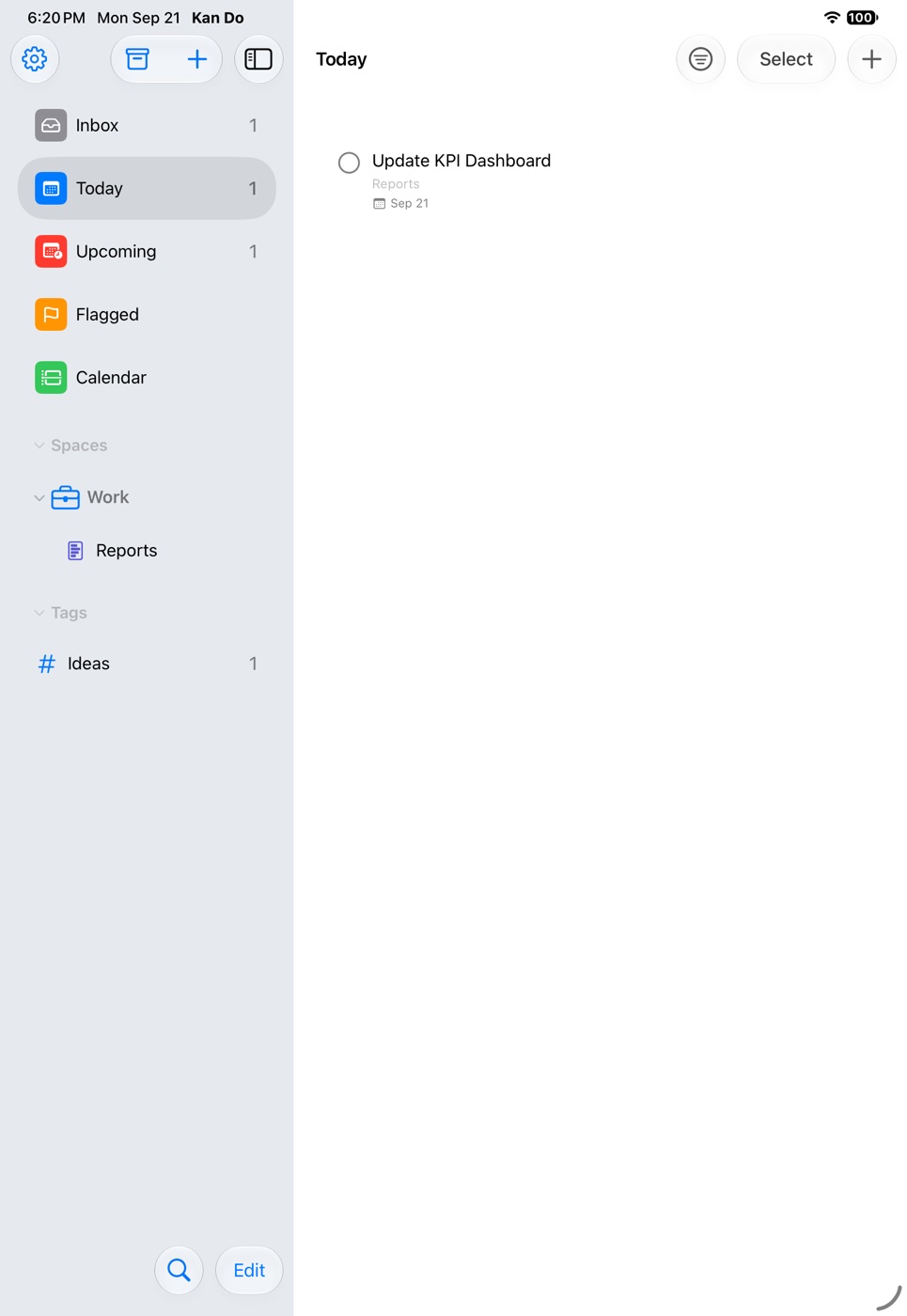
- Tasks due today
- Tasks that are overdue
- Tasks that have started and aren't yet due, every day from the start date through the due date
Only a passed due date makes a task overdue. Two sections keep this clear: Past Due (in red) and Today.
Dated subtasks appear here on their own, matched on their own due date.
Group by Time
Today's Sort and Filter menu has a Group by Time toggle. It splits the list into Overdue, Morning, Afternoon, Tonight, and Any Time (due today with no time), like Reminders. It's off by default and remembered per device. Each section keeps its own manual order.
Upcoming
Upcoming shows tasks scheduled tomorrow or later: anything that has neither started nor come due yet. Once a task's start date arrives it moves to Today.
Flagged
Every incomplete task with the flag set, from any project or the Inbox.
Calendar
The fifth pinned list is the Calendar, a week or month grid. It has its own page: Calendar.
Sorting and filtering a list
Each list's toolbar has a Sort and Filter menu:
- Sort By: Manual, Due Date, Creation Date, Priority, or Title, plus a Direction.
- Filter by Tag: one tag or All Tags. A parent tag matches its nested tags.
Both are remembered per list, per device. In Manual order, drag tasks to reorder them (press and hold first on iPhone and iPad), and the order sticks, including inside Today's Past Due and Today sections and its time groups. A reorder made on one device syncs to the others.
Adding tasks inside a list
Add Task in the toolbar, the + button, or (on the Mac) clicking under the last row creates a task that already matches the list:
| List | New task gets |
|---|---|
| Inbox | Nothing, it's already in the Inbox |
| Today | Due today |
| Upcoming | Due tomorrow |
| Flagged | The flag |
| A custom smart list | Whatever the list's rules pin to a single value: flag, date, priority, tags |
Close the task without typing anything and it's removed again.
Multi-select
Tap Select (or Shift-click and ⌘-click on the Mac) to pick several tasks, then use Complete, Edit Tags, or Delete, or right-click for Move to, Priority, Due Date, Add Tag, and more.
Hiding lists you don't use
Settings ▸ Appearance ▸ Sidebar Smart Lists has a toggle for each of Inbox, Today, Upcoming, Flagged, and Calendar, plus the Smart Lists and Tags sections. Hiding a list doesn't affect your tasks. Hide Counts in Library removes the numbers next to each list.
Smart lists in widgets
The Tasks widget can show Today, Upcoming, Flagged, the Inbox, any custom smart list, or a project, using the same rules as the sidebar. See Widgets.
Opening a list at launch
Settings ▸ Appearance ▸ Open at Launch can open any of these lists every time the app starts.
Today is designed to be your daily list. Give tasks start dates for multi-day work, due times for anything with a real deadline, and turn on Group by Time. Then live in Today and let the boards be where planning happens.