Organizing
Boards and Columns
Adding tasks, dragging cards, sorting and filtering columns, dividers, reordering, and every item in the column menu.
A board is a row of columns. Each column is a stack of cards with an Add task field at the bottom. You can have as many columns as you like, and the board scrolls sideways when they don't fit.
Adding tasks
There are several ways to add a task to a board, and they land in different places:
| Method | Where the task goes |
|---|---|
| Type in a column's Add task field and press Return | That column. The field stays focused for the next task. |
| Type in Add task, then tap the toolbar + | That column, and the new task opens for editing. |
| The toolbar + on its own (⌘N on the Mac) | The project's default column (see below), and the task opens. |
| A column's … menu ▸ New Task | That column, and the task opens. |
| Click empty space under a column's last card (Mac only) | That column. |
The project's default column is set by Settings ▸ Appearance ▸ Tasks with + Button: either the Unsorted Column or the First Column.
A brand-new task closed without typing anything is discarded rather than left behind as a blank "New Task". In the Add task field, Escape discards what you've typed and leaves the field.
On iPhone and iPad, tapping empty space under a column does not create a task. On iPad it closes the open task pane instead. Long-pressing the Add task field shows Paste.
- Drag a card to another column, or to a new position in the same column.
- Dragging within a column only works when the column is in Manual order. If the column is sorted by date, priority, or title, cards keep their sorted order, though you can still drag cards into the column from elsewhere.
- Cards that are completed but still on the board can be dragged too.
- Drop a card onto a project, tag, or Inbox in the sidebar to move it, tag it, or send it back to the Inbox.
- The Move to item in a card's context menu does the same with a menu instead of a drag. See Moving and Multi-Select.
The column menu
Every column header has a … button. Right-clicking or long-pressing the header opens the same menu.
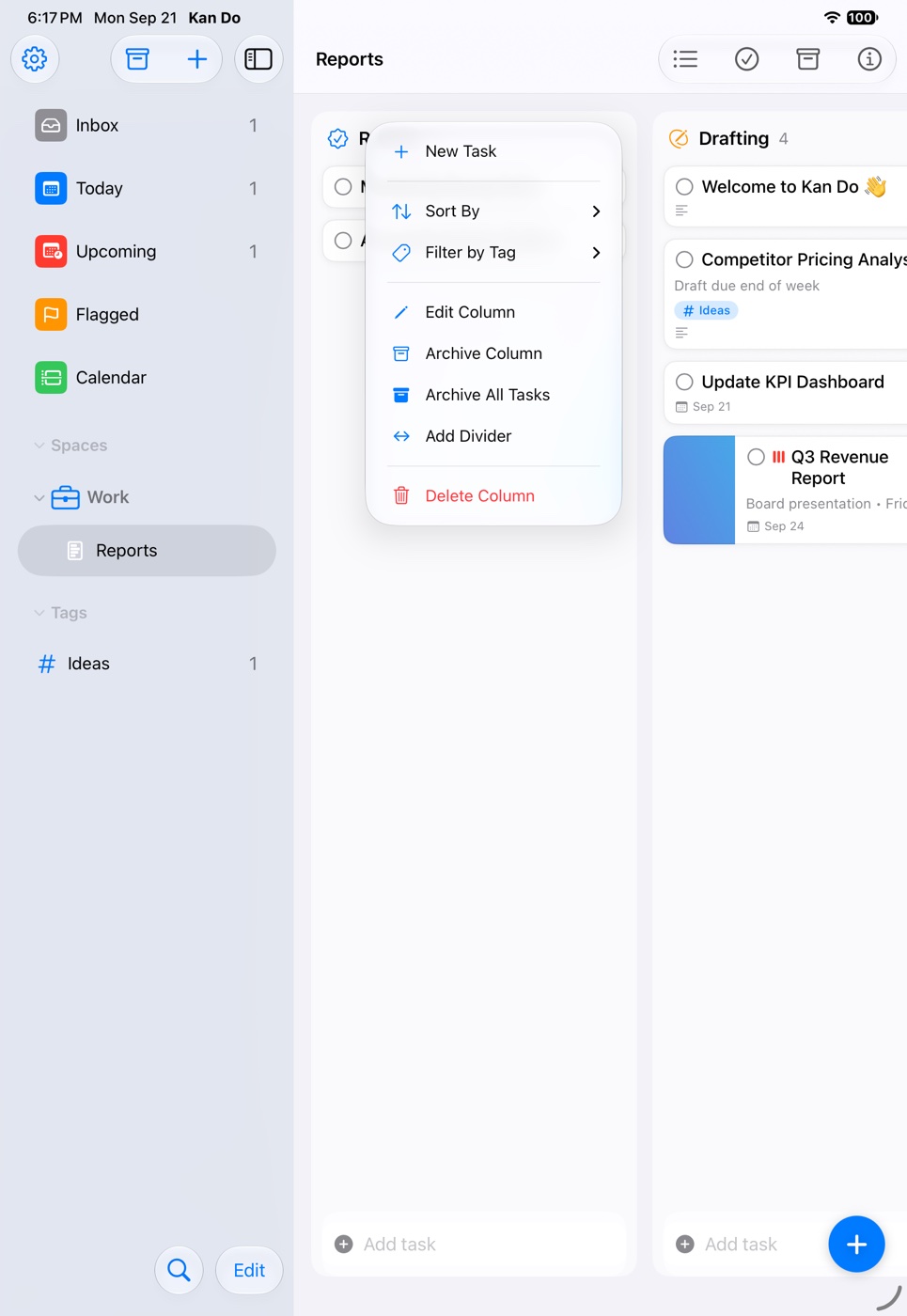
| Item | What it does |
|---|---|
| New Task | Adds a task to this column and opens it |
| Sort By | Manual, Due Date, Creation Date, Priority, or Title, plus a Direction choice |
| Filter by Tag | Show only cards with a chosen tag, or All Tags to clear |
| Edit Column | Rename the column and change its icon, color, and notes |
| Archive Column | Removes the column and its tasks from the board, into the project's archive |
| Archive All Tasks | Archives the column's active tasks but keeps the column |
| Unarchive All Tasks | Brings the column's archived tasks back (shown when it has some) |
| Add Divider | Inserts a divider line at the end of the column |
| Delete Column | Deletes the column, with a choice about its tasks |
Sorting and filtering are remembered per column, per device, and the header shows a small badge while a filter or sort is active.
Filter by tag
Picking a tag that has nested tags under it matches cards carrying the parent or any of its nested tags. Nested tags appear indented in the menu so you can tell them apart.
Deleting a column
Deleting a column that still holds tasks asks what to do with them:
- Archive Tasks and Delete Column moves the tasks to the archive. Archived tasks from a deleted column restore to the Inbox.
- Delete Tasks and Column removes everything.
Editing a column
Edit Column opens the same editor used for spaces, projects, and tags. The name is edited right next to the icon. You can add Notes, pick a Color or a Custom Color, and choose any Symbol. The icon appears in the column header, sized by the Column Icons slider in Settings ▸ Typography.
Adding and reordering columns
- Add Column sits at the end of the board. ⇧⌘C on the Mac does the same. The editor opens with the name focused, and closing it without typing keeps the stock name.
- Reorder by dragging a column by its title. On the Mac, click and drag. On iPhone and iPad, press and hold the title, then drag. A vertical accent line shows where the column will land, and you can drop past the last column to move it to the end.
- Project Settings ▸ Reorder Columns opens a sheet where you can drag columns in a list instead, which is easier on a long board.
Dividers
A divider is a horizontal line that lives in a column's manual order, so you can split a long column into sections such as "This week" and "Later".
- Add one from the column menu with Add Divider. If the column is currently sorted, the item reads Add Divider (Manual Order) and switches the column back to Manual, since dividers only make sense in an order you control.
- Drag a divider the same way you drag a card. On iPhone and iPad, press and hold the line first.
- Right-click or press and hold a divider and choose Remove Divider.
Column counts and header
Each header shows the number of open tasks in the column. Turn on Hide Column Counts in Settings ▸ Appearance to remove the numbers.
When a column is longer than the screen on iPad and Mac, the cards fade out just above the Add task field so the field is always readable.
Column width and card size
On Mac, iPad, and Vision Pro you can set the Column Width (220 to 480 points) in Settings ▸ Typography ▸ Layout. The same section has sliders for the card title (Note Card), Card Subtitle, Card Icons, and Column Icons. On the Mac, ⌘+ and ⌘− zoom the whole board on top of those settings, and ⌘0 returns to actual size. iPhone keeps its stock layout.
Selecting several cards
- Mac: Shift-click for a range, ⌘-click to add or remove one, click empty space to clear.
- iPhone, iPad, Vision Pro: tap Select Tasks in the toolbar, tap the cards, then use the bar at the bottom.
See Moving and Multi-Select for what you can do with a selection.
The card's context menu on a board
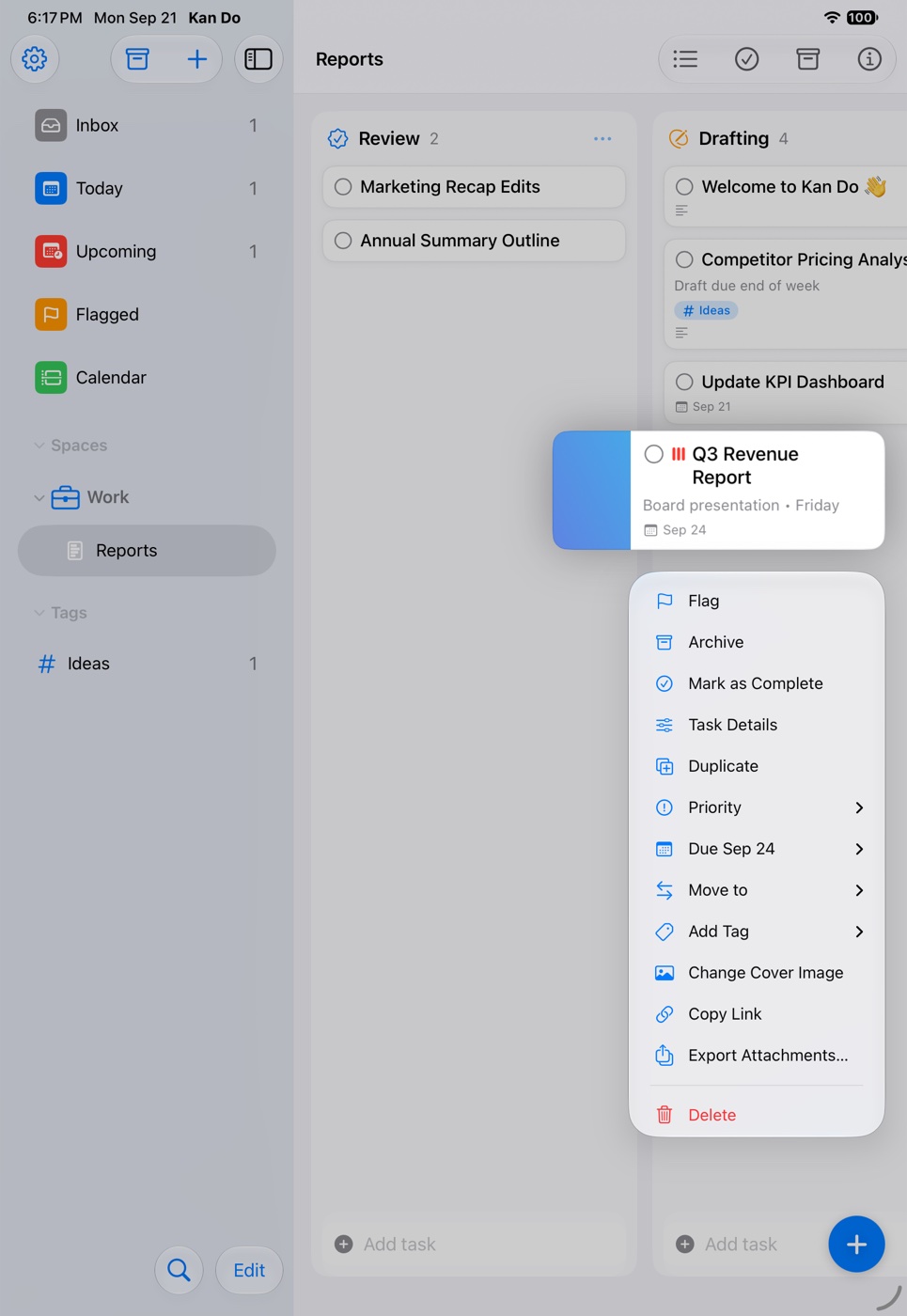
Right-click or press and hold a card. On a board the menu starts with Flag (or Unflag) and Archive, then continues with the standard task actions: complete, details, duplicate, priority, due date, move to, add tag, cover image, copy link, export attachments, and delete. Tasks and Cards lists them all.
Filtering a whole board by tag
Select a tag in the sidebar to see every task carrying it across all projects. To filter one board's columns individually, use each column's Filter by Tag.
If a task is too large to sync
iCloud limits the size of a single record. If a cover image pushes a task past the limit, Kan Do shows a Task Too Large to Sync alert with a Remove Cover Image button. Attachments in the note aren't affected by this limit the same way, so moving a large picture into the note is the usual fix.
Keyboard shortcuts on a board (Mac)
| Shortcut | Action |
|---|---|
| ⌘N | New task in the default column |
| ⇧⌘C | New column |
| ⌘E | Open the selected task |
| ⌘I | Task details |
| ⌘D | Duplicate the selected task |
| ⌘⌫ | Delete the selected task |
| ⌘+ / ⌘− / ⌘0 | Zoom in, out, and actual size |
The full list is on the Keyboard Shortcuts page.