Tasks
Tasks and Cards
Every field a task can hold, what shows on the card, the task pane, subtasks, links, location, history, and the full context menu.
A task is a card on a board, a row in a list, and a pane full of details when you open it. This page covers everything a task can hold. Dates, reminders, cover images, and notes each get their own deeper page.
What a card shows
Without opening a task, its card can show:
- Priority bars (one to three) before the title
- A flag
- The cover image, as a strip, square, or widescreen banner
- The title and subtitle
- A Starts chip when the task has a start date
- A due date chip, red once it's overdue, with the time if there is one
- A repeat icon for recurring tasks
- Small indicators for a note, attachments, and a location
- Tag chips
- A subtask progress pie
The task pane
Tap a card to open it. From the top:
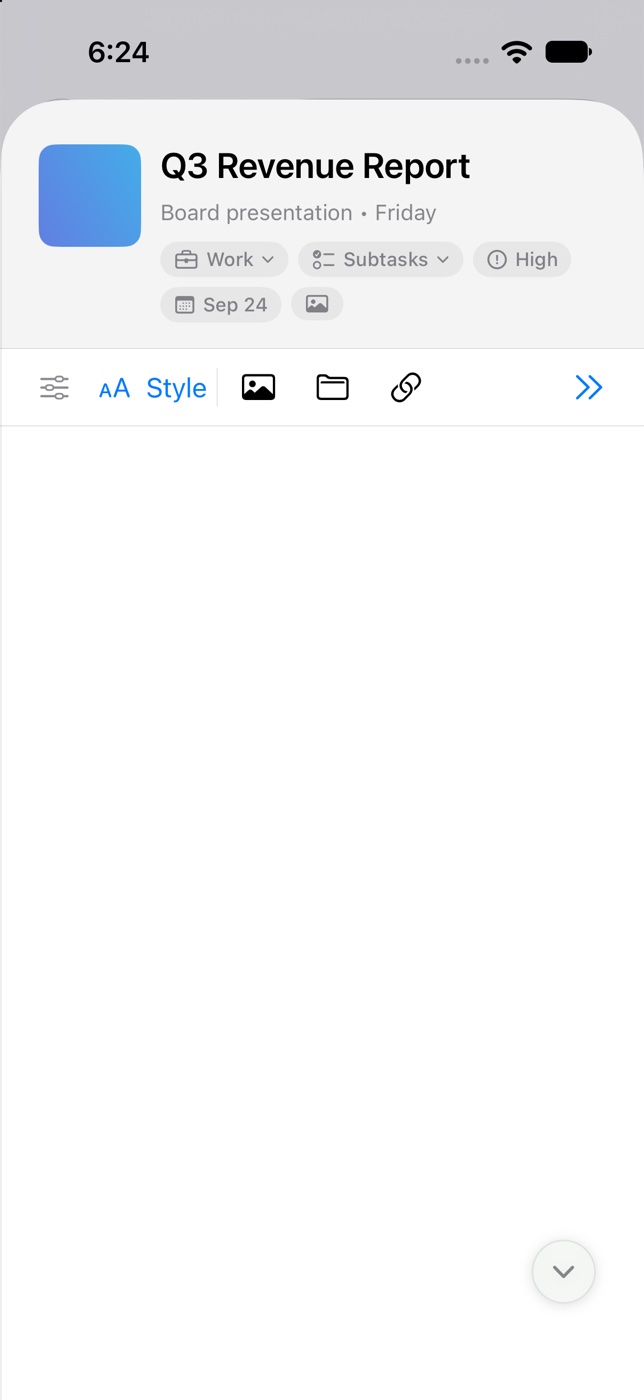
- Title. Return finishes editing. On the Mac, clicking places the cursor where you clicked, and Escape in the title of a brand-new task backs out of creating it.
- Subtitle. Tap Add subtitle. Shows under the title on the card.
- Add details… expands the details section.
- Notes. The rich-text editor. See The Notes Editor.
The editor bar above the note includes a Task details button (the sliders icon) that toggles the details section, along with buttons for attachments, links, and moving the task.
The details section
| Field | What it does |
|---|---|
| Due Date | The date the task is due, with an optional time. See Dates and Repeating Tasks |
| Alert When Due | Sends a notification at the due time |
| Alert Until Done | Keeps re-alerting until the task is completed |
| Remind Every | The Alert Until Done cadence for this task: Default, Every 30 Minutes, Every Hour, Every 3 Hours, or Every Day |
| Start Date | When the task begins, with an optional time and an Alert at Start toggle |
| Priority | None, Low, Medium, or High |
| Flag | Marks the task for the Flagged list |
| Repeat | Never, a preset like Daily or Weekly, or a custom rule |
| Tags | Opens the tag sheet |
| Board Location | Which space, project, and column the task is in, or Inbox |
| Links | Web addresses or file paths attached to the task |
| Location | A place, with optional arrive and leave alerts |
| Attachments | Images and files attached to the task |
| Subtasks | A checklist inside the task |
| History | Created, and when they apply, Completed, Archived, and Restored dates |
Subtasks
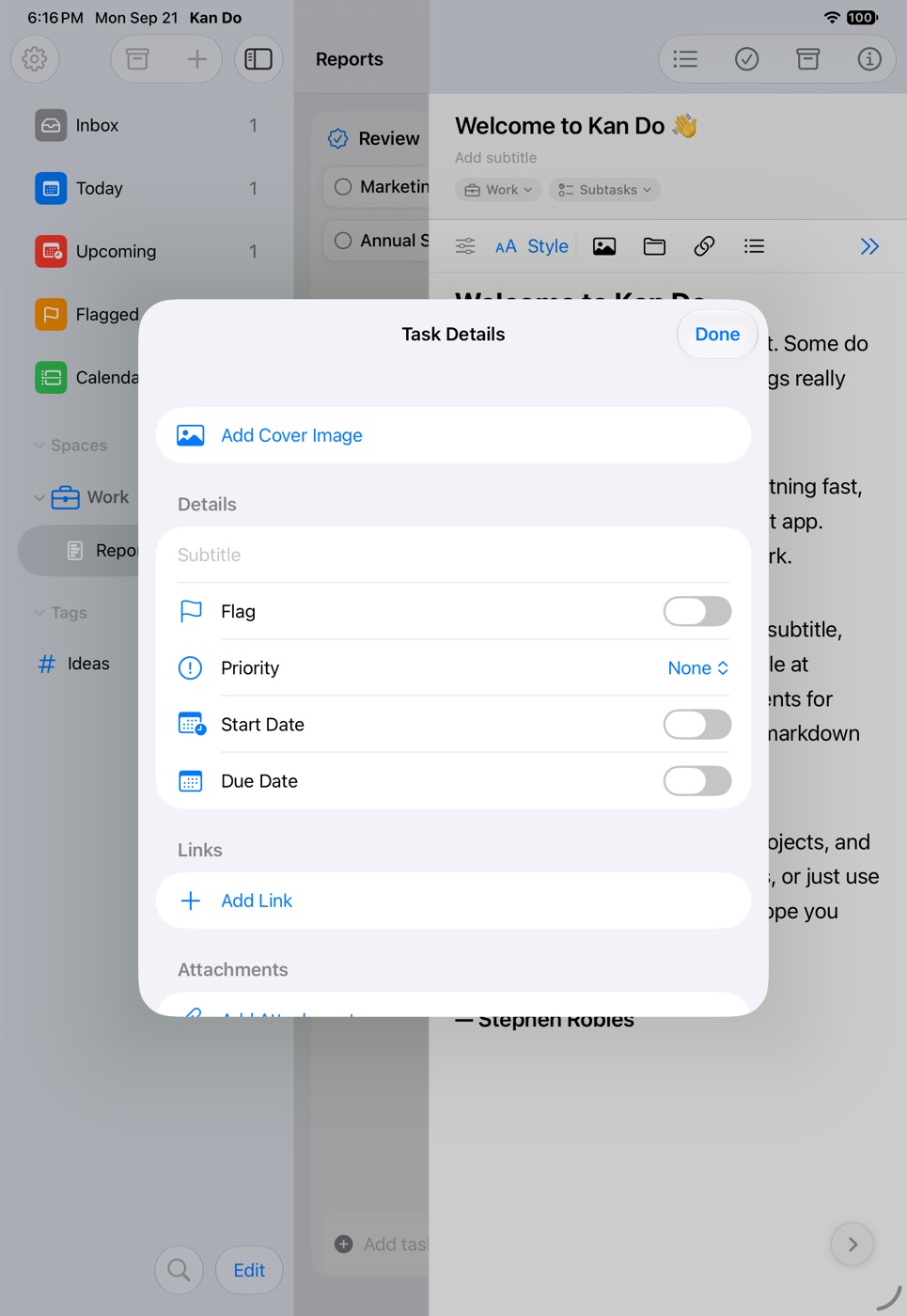
Tap Subtasks in the details to add checklist items. Each subtask has its own title and completion circle, and can carry its own due date and reminder. The card shows a progress pie as you check them off.
Dated subtasks show up on their own in Today, Upcoming, the Calendar, and any custom smart list with a Date or Time filter. A subtask is matched on its own due date, and takes its tags, priority, flag, and project from its parent task.
If you never use subtasks, Settings ▸ Appearance ▸ Subtasks hides the section, the disclosure, and the card pies everywhere. Existing subtasks are kept.
Links
The Links section holds any number of web addresses or file paths. Tap Add Link and type or paste an address.
Each link row offers Open, Edit, and Copy Link (right-click on Mac, press and hold on iPhone and iPad). The chain icon in the editor bar shows the same links in a popover.
On the Mac, dragging an email out of Mail into a task's note creates a card showing the subject and adds a link to the message in the Links section too. Clicking the card opens the email in Mail.
Location
Tap Add Location and search for a place. Once set, the task shows a pin indicator on its card, and two toggles appear:
- Notify When Arriving
- Notify When Leaving
Arrive and leave alerts are delivered by your iPhone, which needs to allow Kan Do location access. Custom smart lists can filter by Has Location, No Location, Alert on Arrival, or Alert on Leaving. Remove Location clears it.
Board Location
The Board Location row shows where the task lives as "Space ▸ Project ▸ Column", or Inbox. Tap it to move the task anywhere else. See Moving and Multi-Select.
History
The History section shows when the task was Created, and when they apply, Completed, Archived, and Restored. Archive and restore dates are recorded whether a task is archived by hand, by completing it under Move to Archive, or brought back from the archive.
The task context menu
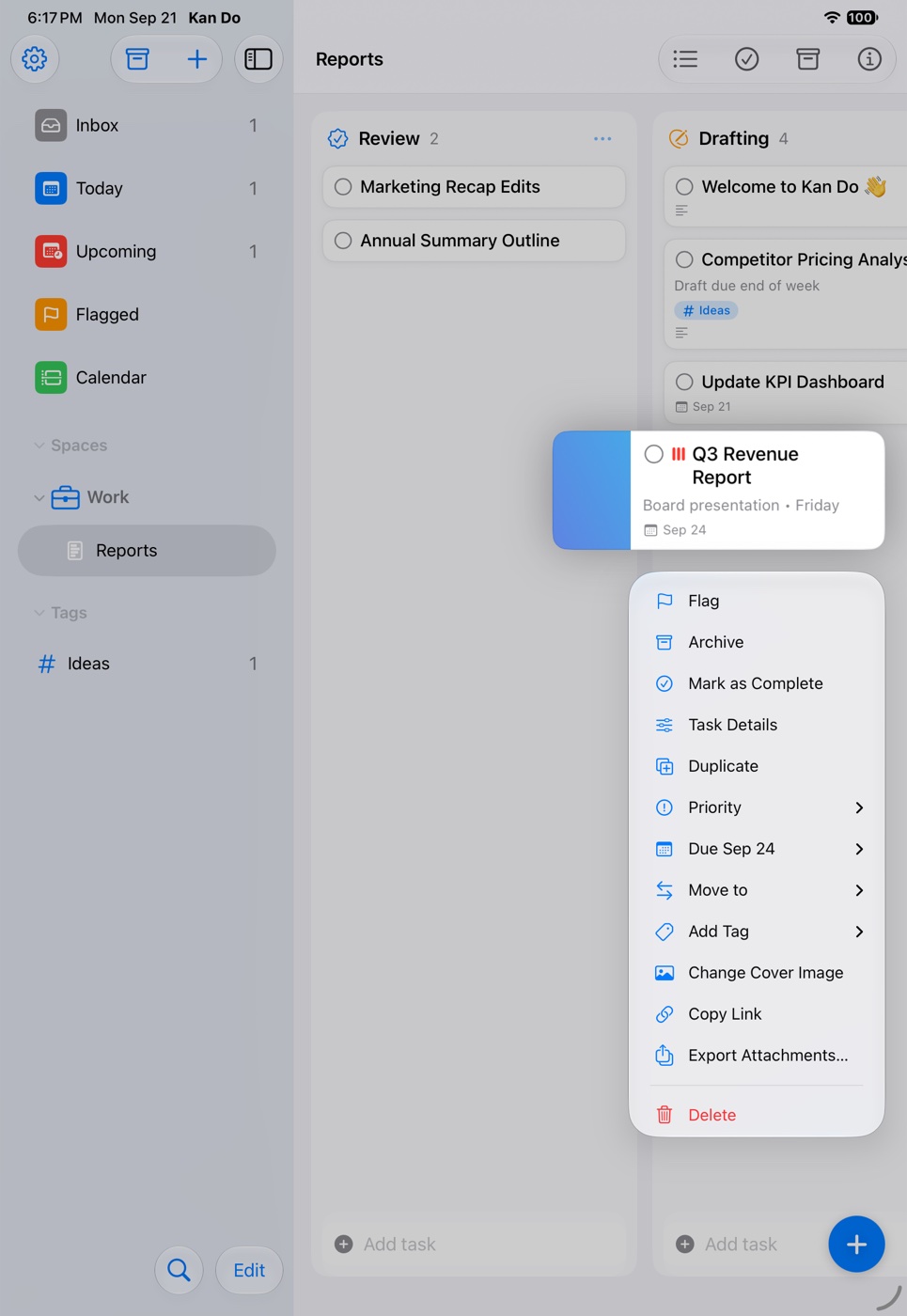
Right-click a card (Mac) or press and hold it (iPhone, iPad, Vision Pro):
| Item | What it does |
|---|---|
| Flag / Unflag | Board only. Toggles the flag |
| Archive | Board only. Moves the task to the project's archive |
| Mark as Complete / Mark as Incomplete | Toggles completion |
| Task Details | Opens the task with the details section showing (⌘I on Mac) |
| Duplicate | Makes a copy right below (⌘D on Mac). The copy scrolls into view |
| Priority | None, Low, Medium, High |
| Due Date | Today, Tomorrow, Next Week, Pick Date & Time…, or Remove Due Date |
| Move to | Choose a space, project, and column, or Inbox |
| Add Tag | Every tag, nested tags as submenus, and New Tag… |
| Add Cover Image / Change Cover Image | Photo Library, Take Photo, Choose File…, or Use Clipboard |
| Copy Link | Copies a kando://task/… link that opens this task on any of your devices |
| Export Attachments… | Saves the cover image and note attachments to a folder or the share sheet |
| Delete | Deletes the task |
Duplicating
Duplicate copies everything: title, subtitle, note, dates, priority, flag, tags, links, cover image, attachments, and subtasks. The copy is placed directly below the original and scrolls into view if it lands off screen.
Deleting
Delete removes the task. On iPhone and iPad a "Task deleted" pill appears for a few seconds with an Undo button, and shaking the phone also undoes. On the Mac, ⌘Z undoes.
If the task repeats, Kan Do asks first:
- Delete This Occurrence Only removes this one and still creates the next on schedule.
- Delete All Future Occurrences ends the series.
Copy Link
Copy Link puts a link like kando://task/3F2A… on the clipboard. Paste it into a note, a calendar event, a message to yourself, or another task, and opening it jumps straight to the task on any device that has Kan Do. Shortcuts can get the same link with the Get Task Link action. See Spotlight and Links.
Undo
Completing, deleting, and duplicating can be undone: ⌘Z on the Mac, shake on iPhone and iPad, or the Undo button in the pill after a delete.
The subtitle is the most underused field. Use it for the one line of context you'd otherwise have to open the card to see: "Draft due Friday", "Waiting on Sam", "Aisle 4".