Tasks
Dates and Repeating Tasks
Due dates and times, start dates, how Today and Upcoming read them, and every repeat option.
A task can have a due date, a start date, or both, each with an optional time. Dates are what feed Today, Upcoming, the Calendar, reminders, and widgets, so it's worth knowing exactly how Kan Do reads them.
Due dates
Set a due date from:
- The Due Date row in the task's details, which opens a date picker. Set a time in the When picker underneath. Leaving the time at midnight means "no time".
- The card's context menu: Due Date ▸ Today, Tomorrow, Next Week, or Pick Date & Time…. Remove Due Date clears it.
- Dragging a task to another day in the Calendar.
- Siri, Shortcuts, widgets, or the AI connector.
The card shows the date in a chip. It turns red once the due date has passed, and shows the time when there is one.
Due date vs. due time
A due date with no time means "sometime that day". A due time turns on the more precise behaviors: the reminder fires at that time, Today's Group by Time sorts the task into Morning, Afternoon, or Tonight, and the calendar tile shows the time, in red once it has passed.
Start dates
Start Date in the details gives a task a beginning as well as an end. It shows on the card as a "Starts …" chip, and an Alert at Start toggle sends a notification when the start arrives, which works well as an early heads-up before the due date.
How Today treats start dates
This is the rule that makes Today work as a daily to-do list:
- A task joins Today on its start date and stays there every day through its due date.
- It only becomes overdue once the due date passes.
- Upcoming shows what hasn't started or come due yet.
So a task that starts Monday and is due Friday appears in Today all week, and in Past Due on Saturday. The same rule applies to your own smart lists with a Today, Tomorrow, This Week, Next Week, or date-range filter, and to widgets. The Overdue filter goes by the due date alone.
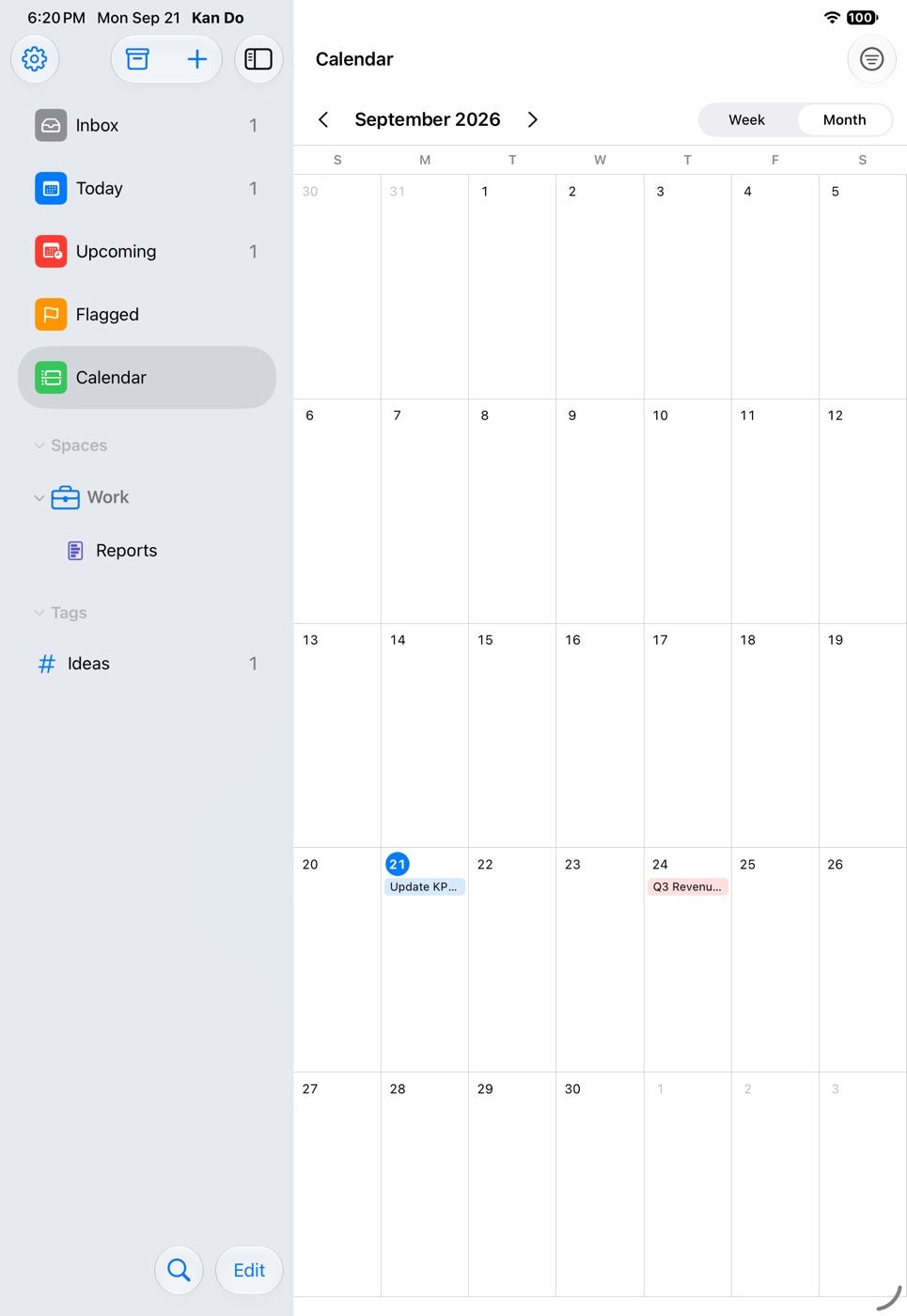
The Calendar shows a task on its start date, marked "Starts", as well as on its due date. Drag the Starts chip to move the start date.
Repeating tasks
The Repeat row in the details has:
- Never
- Presets: Hourly, Daily, Weekdays, Weekends, Weekly, Biweekly, Monthly, Every 3 Months, Every 6 Months, Yearly
- Custom, with a Frequency of Daily, Weekly, Monthly, or Yearly and an Every N days, weeks, months, or years
A repeating task shows a repeat icon on its card. When you complete it, Kan Do creates the next occurrence on schedule, with the same title, notes, tags, and settings.
Deleting a repeating task
Deleting asks:
- Delete This Occurrence Only: this one goes, and the next one is still created on schedule.
- Delete All Future Occurrences: the series ends.
Snoozing a repeating task
Use Snooze 1 Hour or Snooze Until Tonight on the reminder. Both bring the same reminder back later and leave the task's date alone, so the repeat schedule is untouched. Snooze Until Tomorrow moves the due date, which would shift the whole series, so avoid it for repeating tasks. See Reminders and Notifications.
Repeating tasks and sync
If two devices complete the same repeating task while both are offline, each creates the identical next occurrence. Kan Do notices after the next sync, keeps one copy everywhere, and removes the spare on its own.
Dates in the Inbox
The Inbox is for tasks with no project and no date. Giving an Inbox task a due date or start date moves it out of the Inbox and into Today or Upcoming, and the Inbox count drops accordingly. The task is still outside any project; it just isn't waiting to be sorted anymore.
Dates in smart lists
- Today shows tasks whose start or due date is today or earlier, in Past Due and Today sections, optionally grouped by time.
- Upcoming shows tasks scheduled tomorrow or later.
- Custom smart lists can filter on Date (Any Date, No Date, Today, Tomorrow, This Week, Next Week, Overdue, Date Range) and Time (Any Time, No Time, Morning, Afternoon, Evening, Night, Time Range).
See Smart Lists and Custom Smart Lists.
Dates from other apps
- The Add Task Shortcuts action has separate Due Date, Due Time, and Due Date & Time fields. Use Due Date & Time for a variable that already carries a time, such as a calendar event's start.
- Import from Reminders carries due dates over. Repeating reminders import once, due at their next occurrence.
- Siri understands natural dates: "Add a task to Kan Do called call the plumber tomorrow."
Give tasks a start date when they take more than a day. They'll sit in Today the whole time as gentle pressure, without going red until they're actually late.